Mixroom
Mixroom in the left menu, at spoken.systems/host/dashboard/mixes.


A mix is where recordings become an episode. You assemble the pieces — answers collected through a form, your own intro and outro, music — into one continuous piece of audio or video, then export it.
Two ways to start, and they open the same mix in different editors:
- New mix — the full editor: a timeline, several tracks, per-segment properties.
- New simple mix — the list view: the pieces in order, a background, and music under it.
Neither locks you in — a mix opens in the editor it was made with, and the Editor mode toggle in Settings switches between them at any time.
Each row is a mix. The ⋯ menu holds Edit, Rename, Delete, Manage Access, Share with a team and Add to folder.
Choosing what a mix is
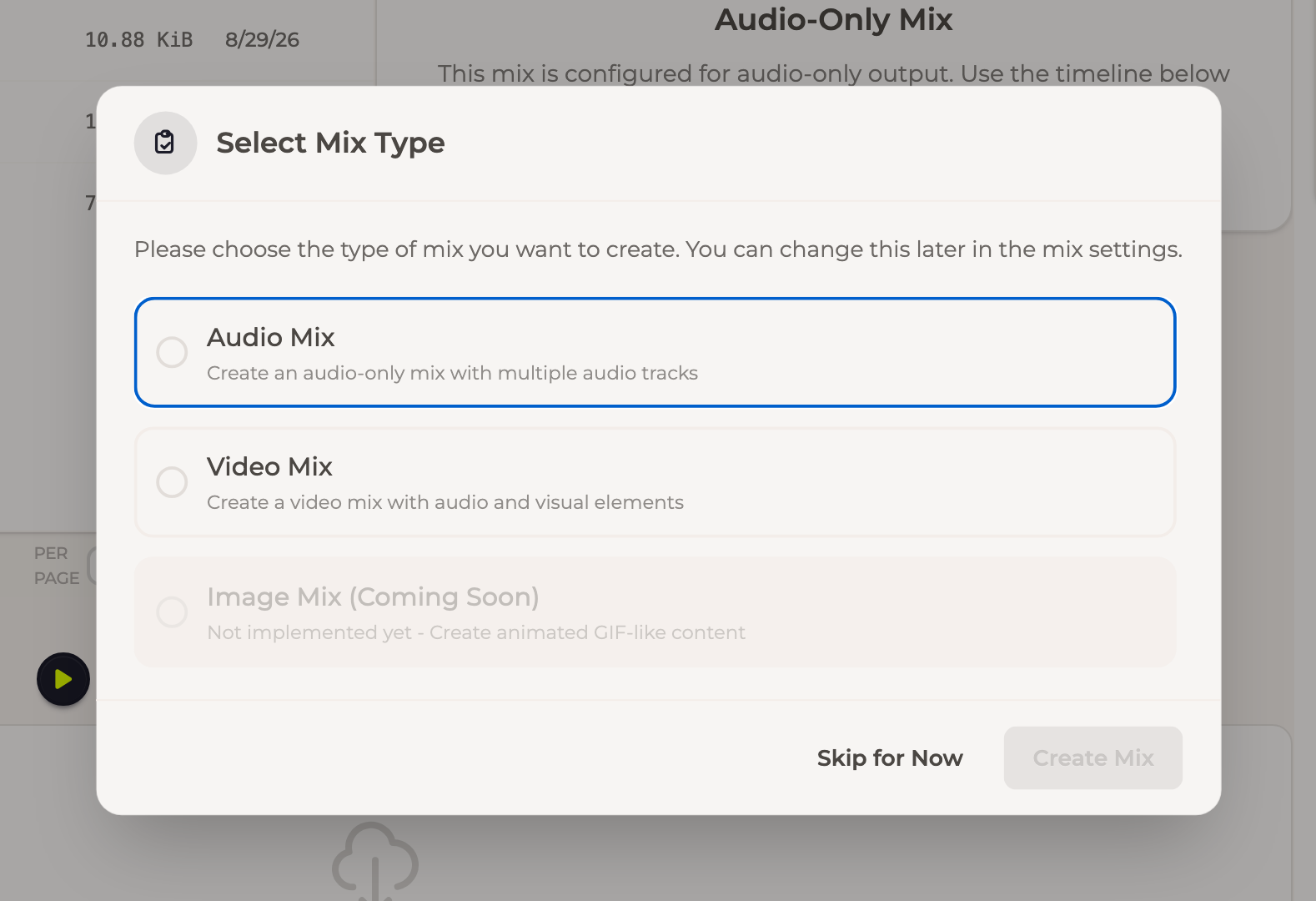
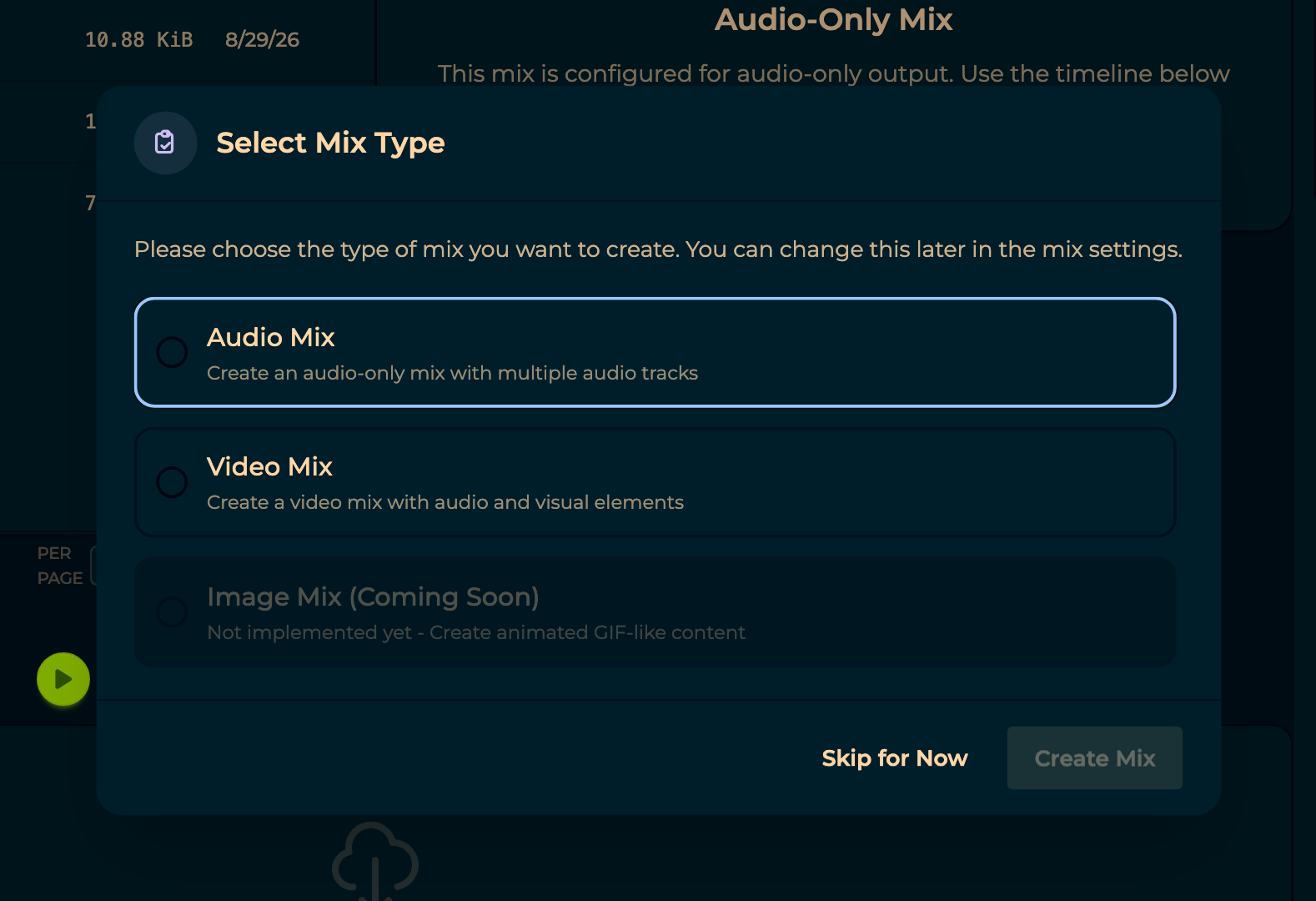
A mix with no type asks first: Audio Mix (audio-only, several tracks) or Video Mix (audio and visual elements). Image Mix is listed but not built yet. Skip for Now leaves it open — the choice also lives in Mix Type in the settings panel, so nothing is decided for good here.
The editor
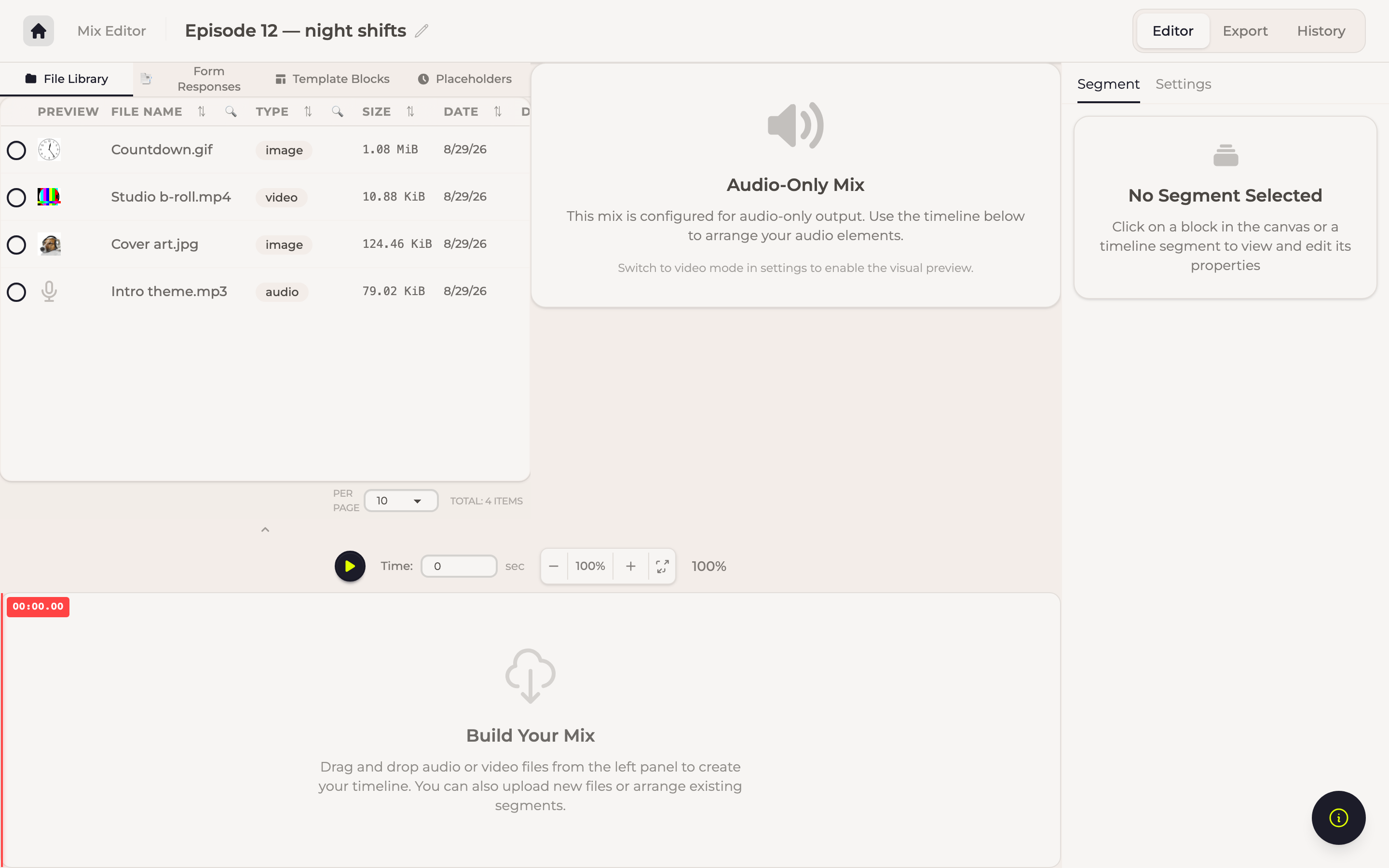
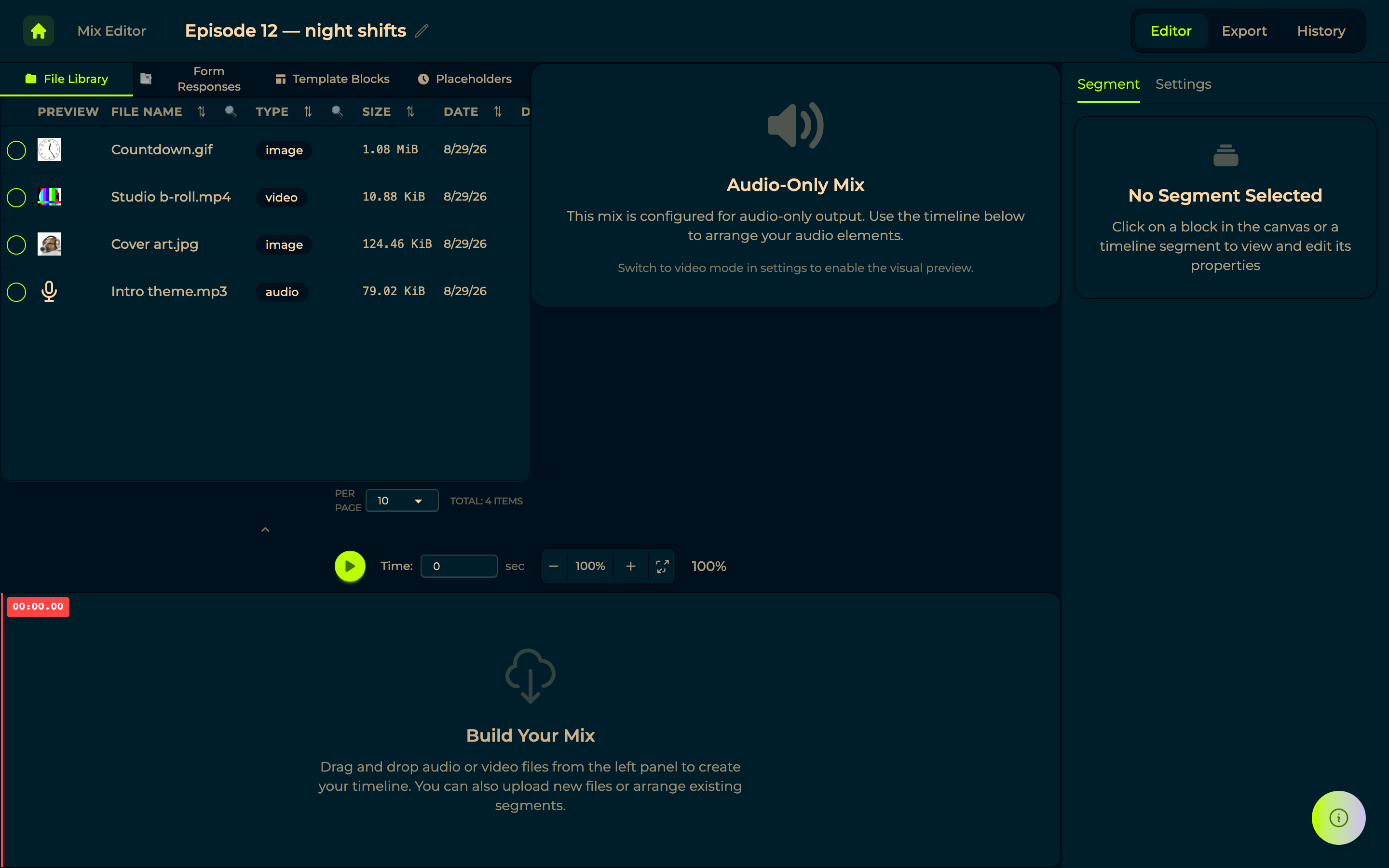
Three main tabs — Editor, Export and History — with Segments and Settings opening the right-hand panel. The title, top left, renames the mix.
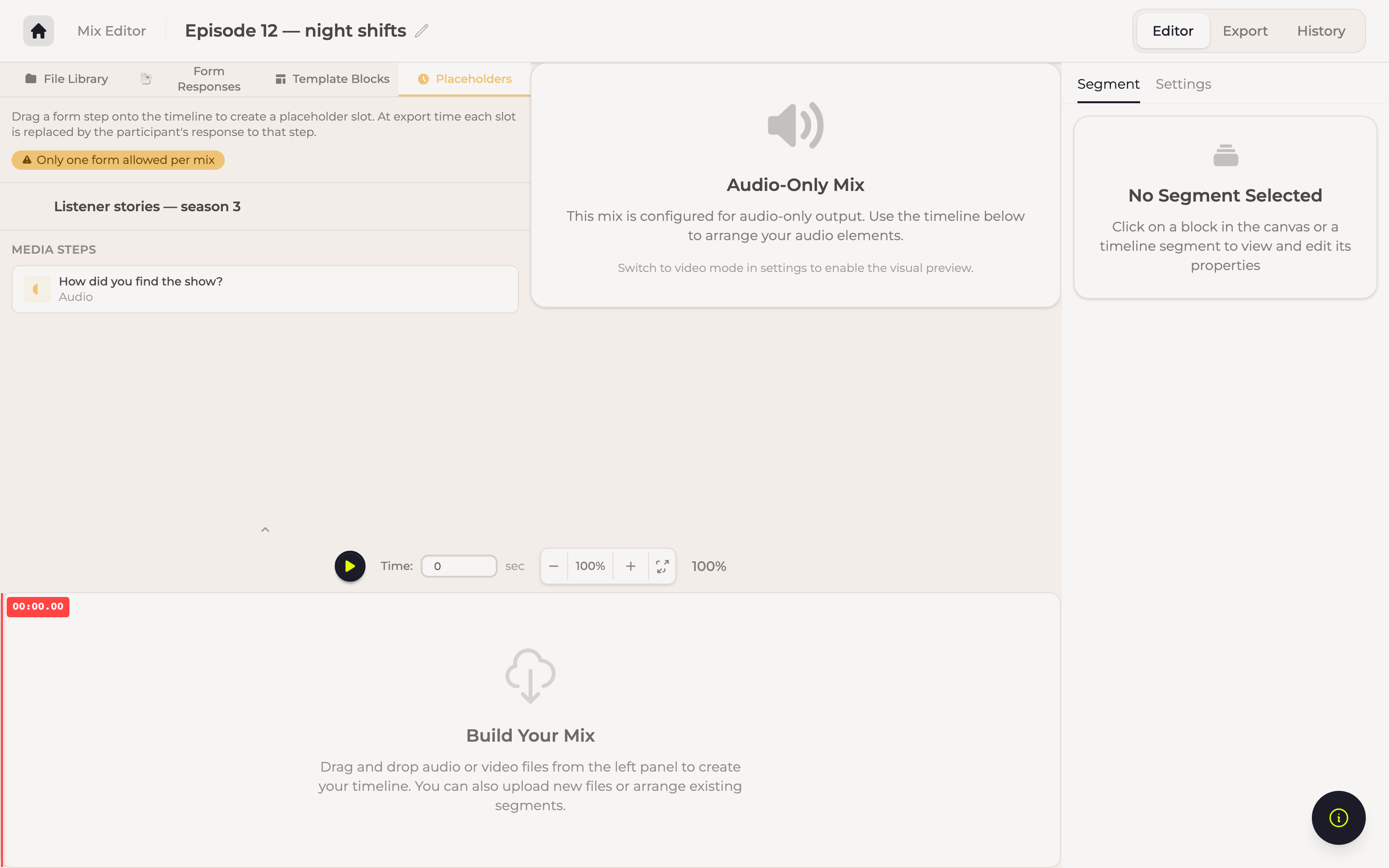
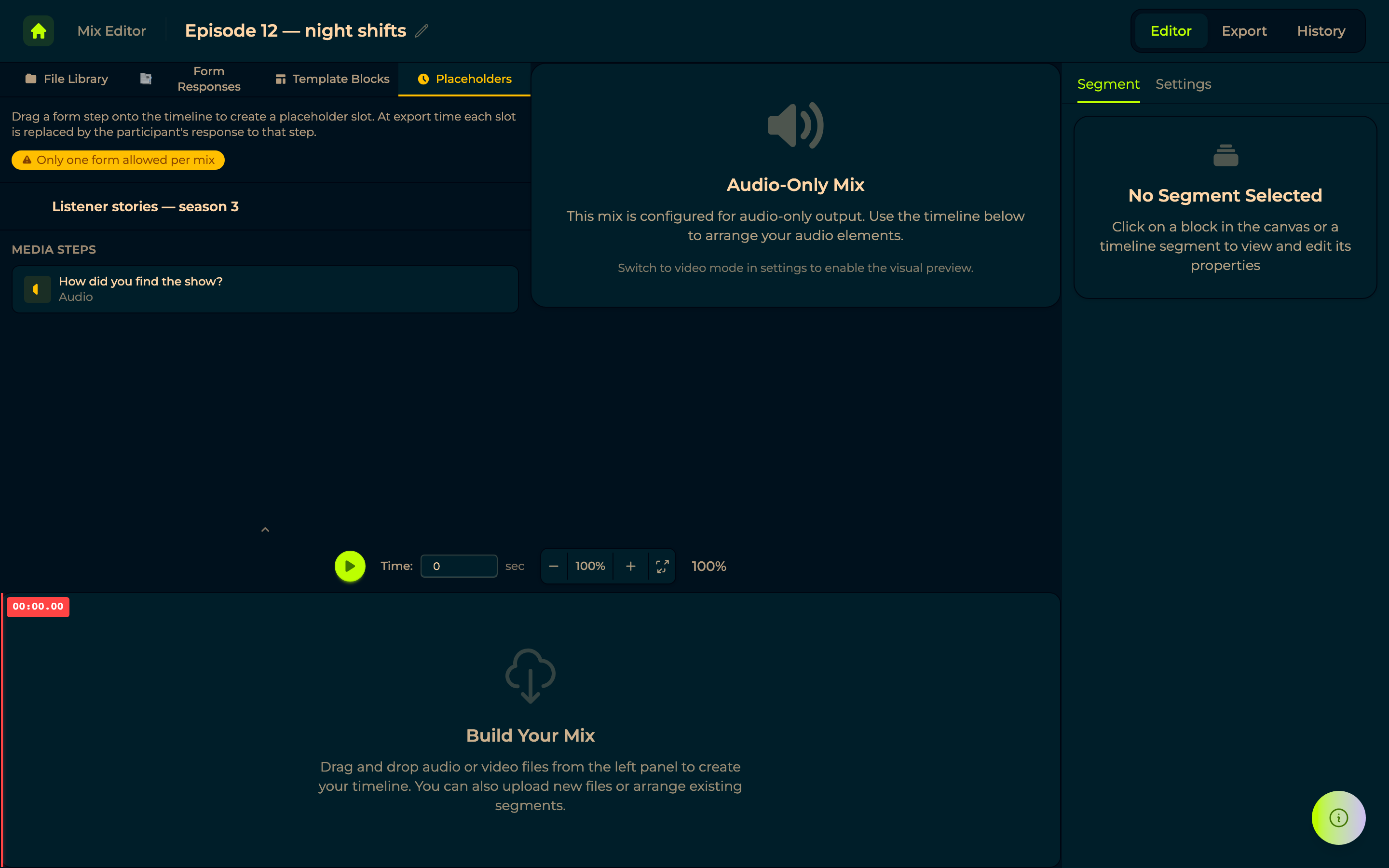
The middle is the preview, with the transport under it: play, a Time position in seconds, and zoom (−, the percentage, +, and fit-to-width) for the timeline below. An audio-only mix says so rather than showing a black rectangle.
The timeline is the mix itself. You build it by dragging pieces from the left panel onto it; a right-click on a segment opens its menu, and every change can be undone and redone.
Where the pieces come from
The left panel is the source toolbar, and each tab is a different kind of material.
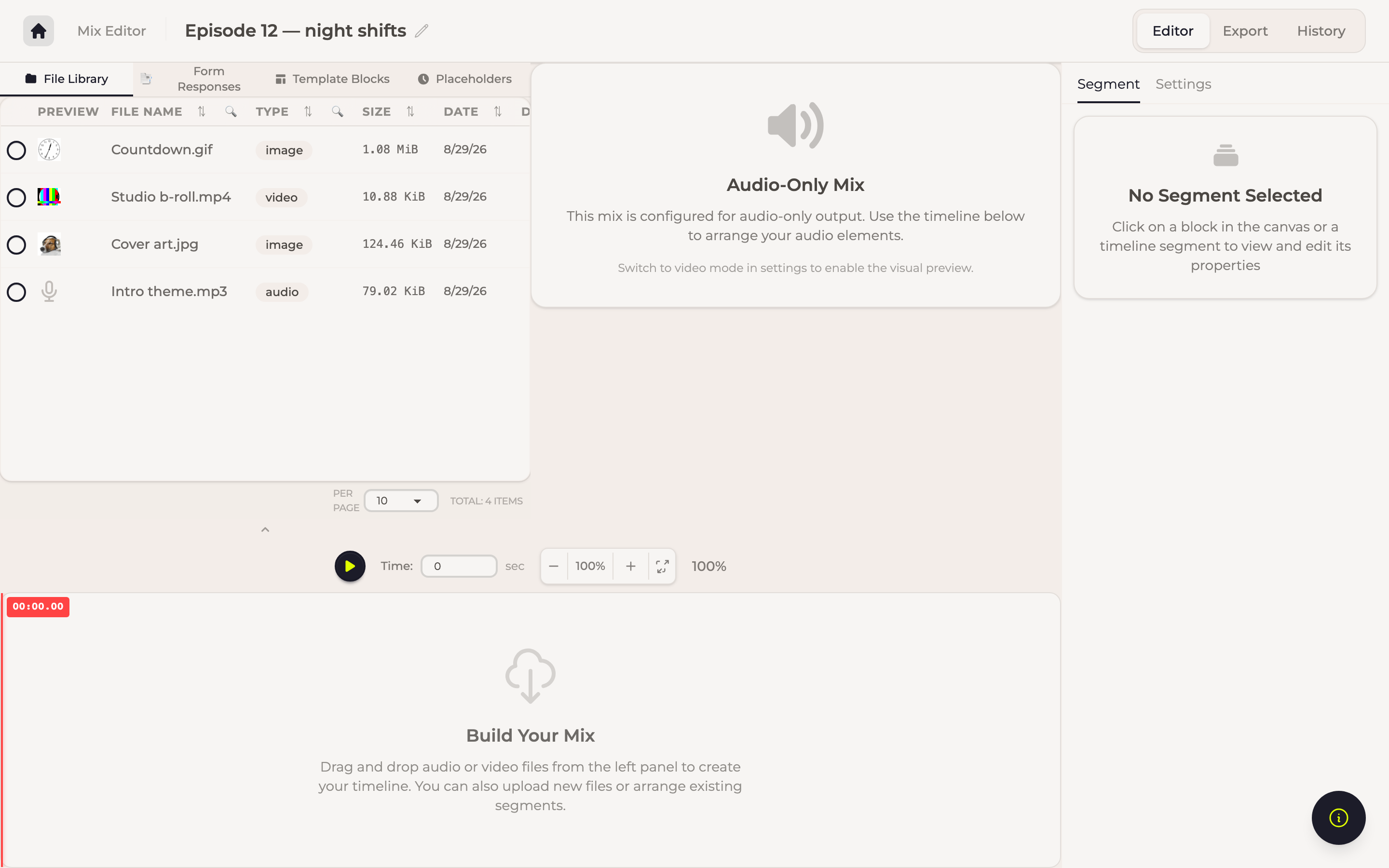
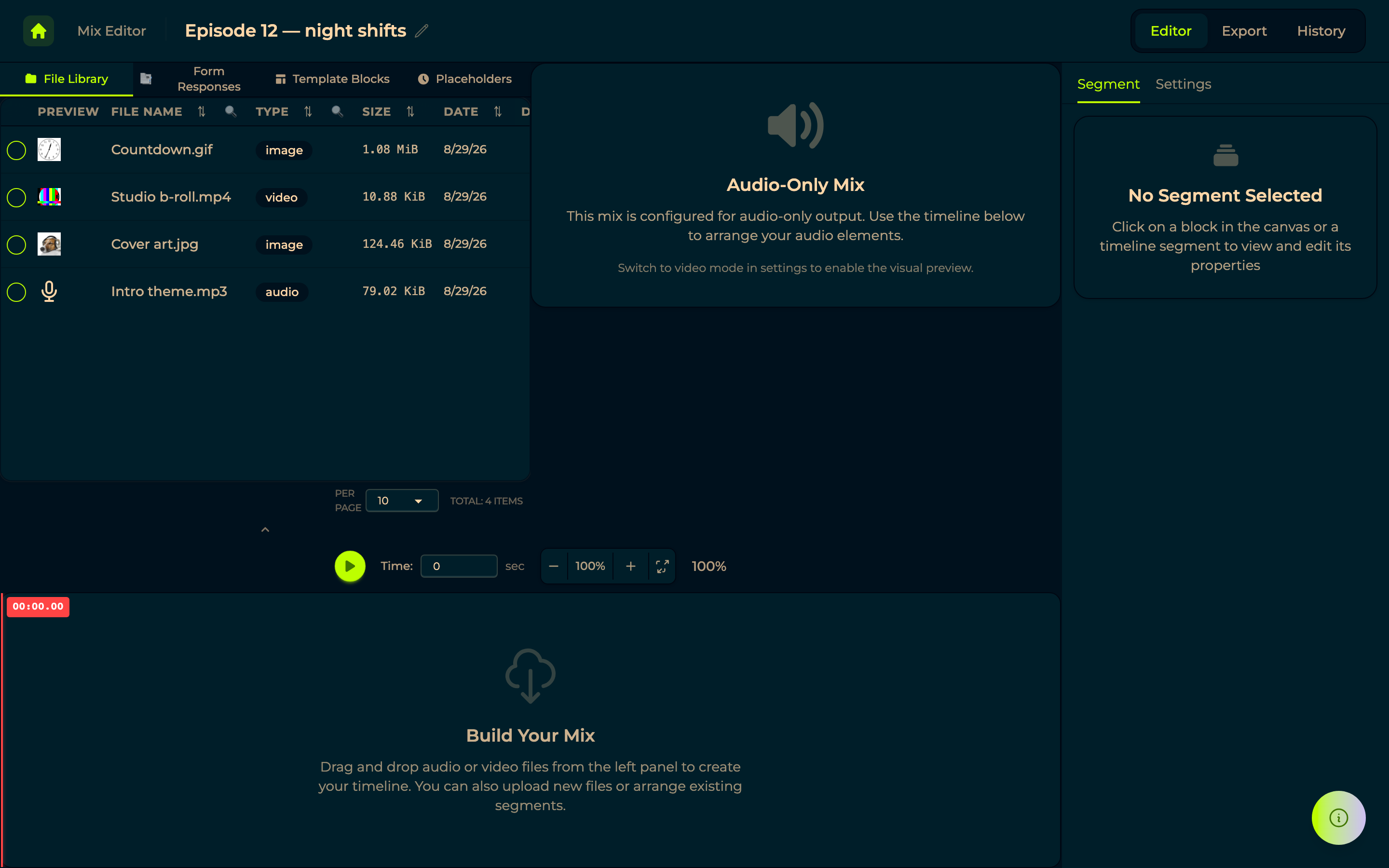
File Library — everything in your files: intros, outros, music, artwork.
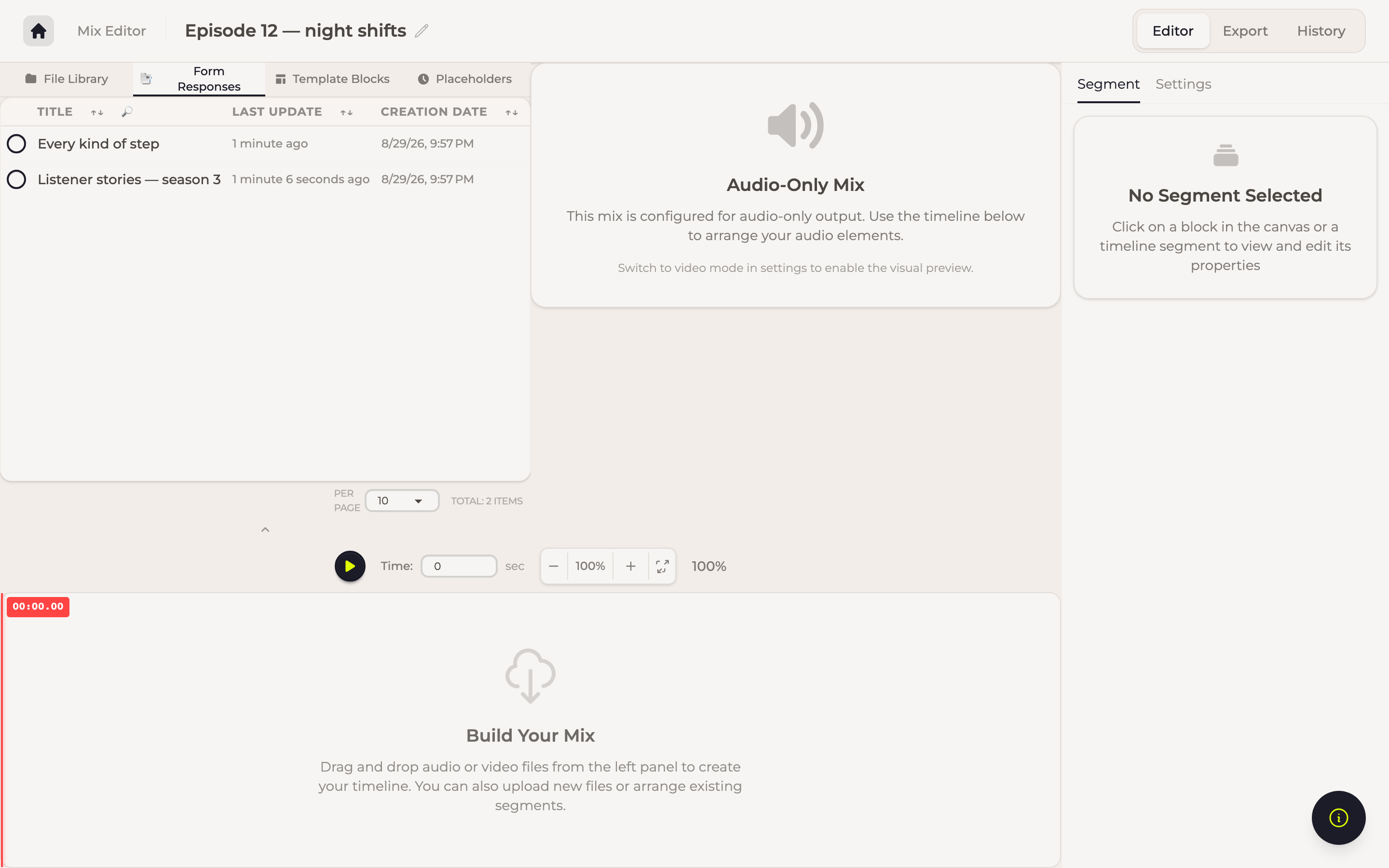
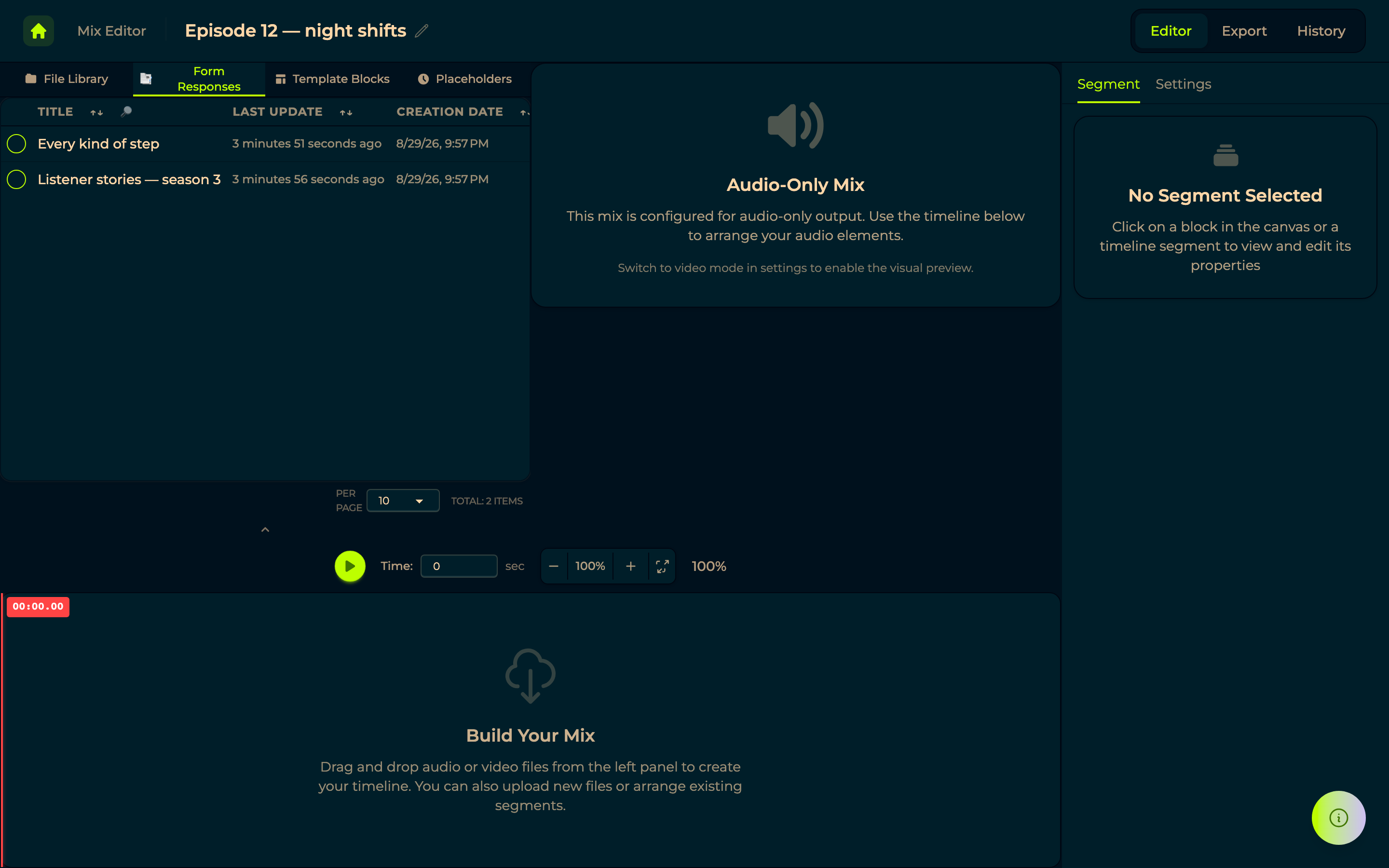
Form Responses — the recordings people sent you. Pick a form and its media steps become blocks you can drop onto the timeline. One form per mix: a mix is an episode, and an episode comes from one conversation.
Placeholders — pieces with no file behind them yet: Silence, Audio, Video, Image. Useful to lay out an episode before the answers arrive.
Template Blocks — ready-made pieces to start from.
Two more tabs appear when you have the material for them: Recordings from a room, after choosing which room, and Interview Answers for anything coming from an interview.
Settings and segments
Settings covers the whole mix: Mix Type, Duration (Auto-calculate from elements, or a length you set), Background Color with a custom value, and — on a video mix — resolution, aspect ratio and frame rate. A design system can drive its colours here too.
Editor mode, also in Settings, switches between the timeline and the list.
Segments edits the one piece you selected: click a block in the preview, a segment in the timeline, or a row in the list. With nothing selected it says so. Alongside its position and length it holds the segment's Volume and Mute, its cut-off times, and its Layer — what the piece sits in front of. Muting a segment silences it in the preview as well as the export.
Exporting
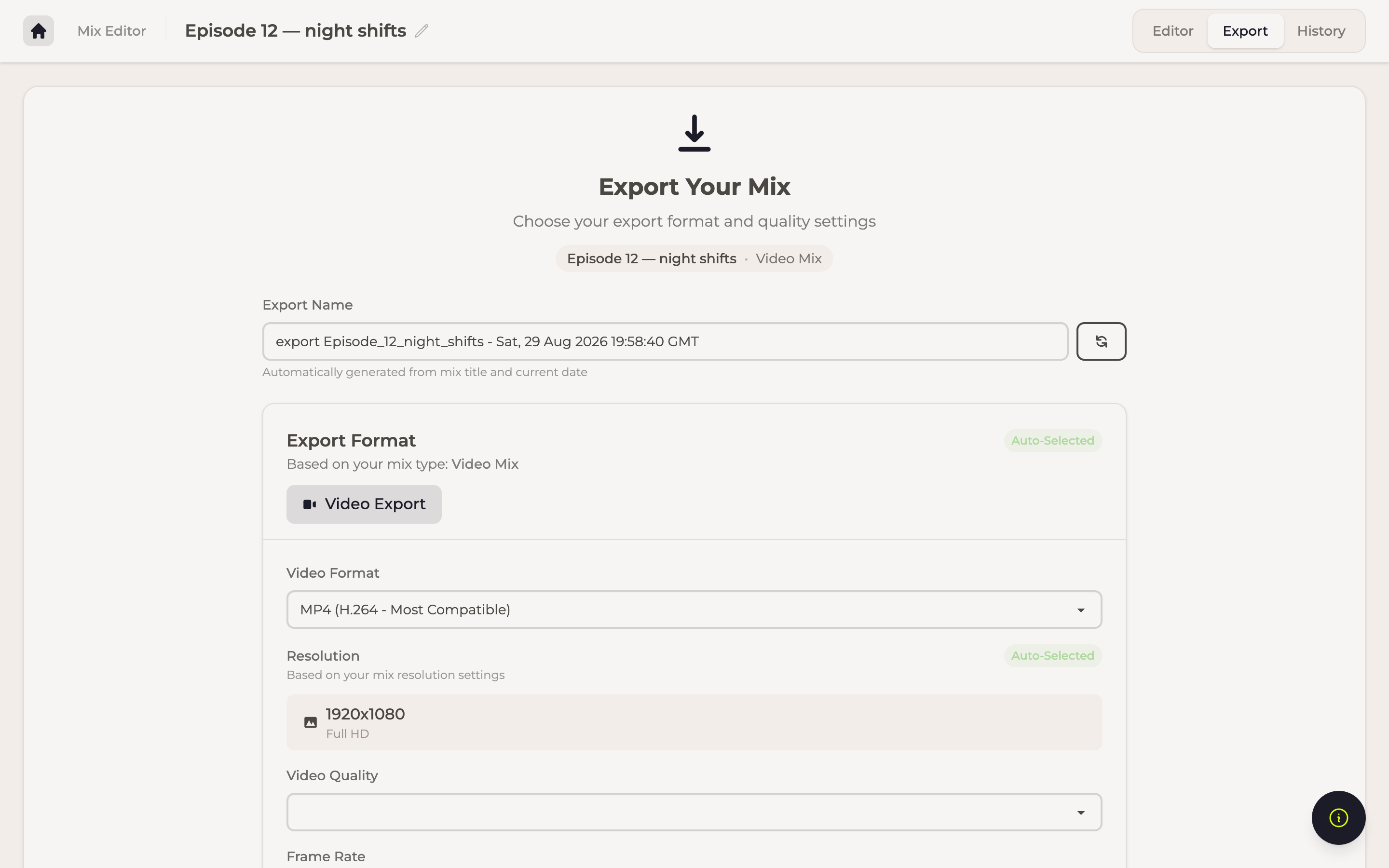
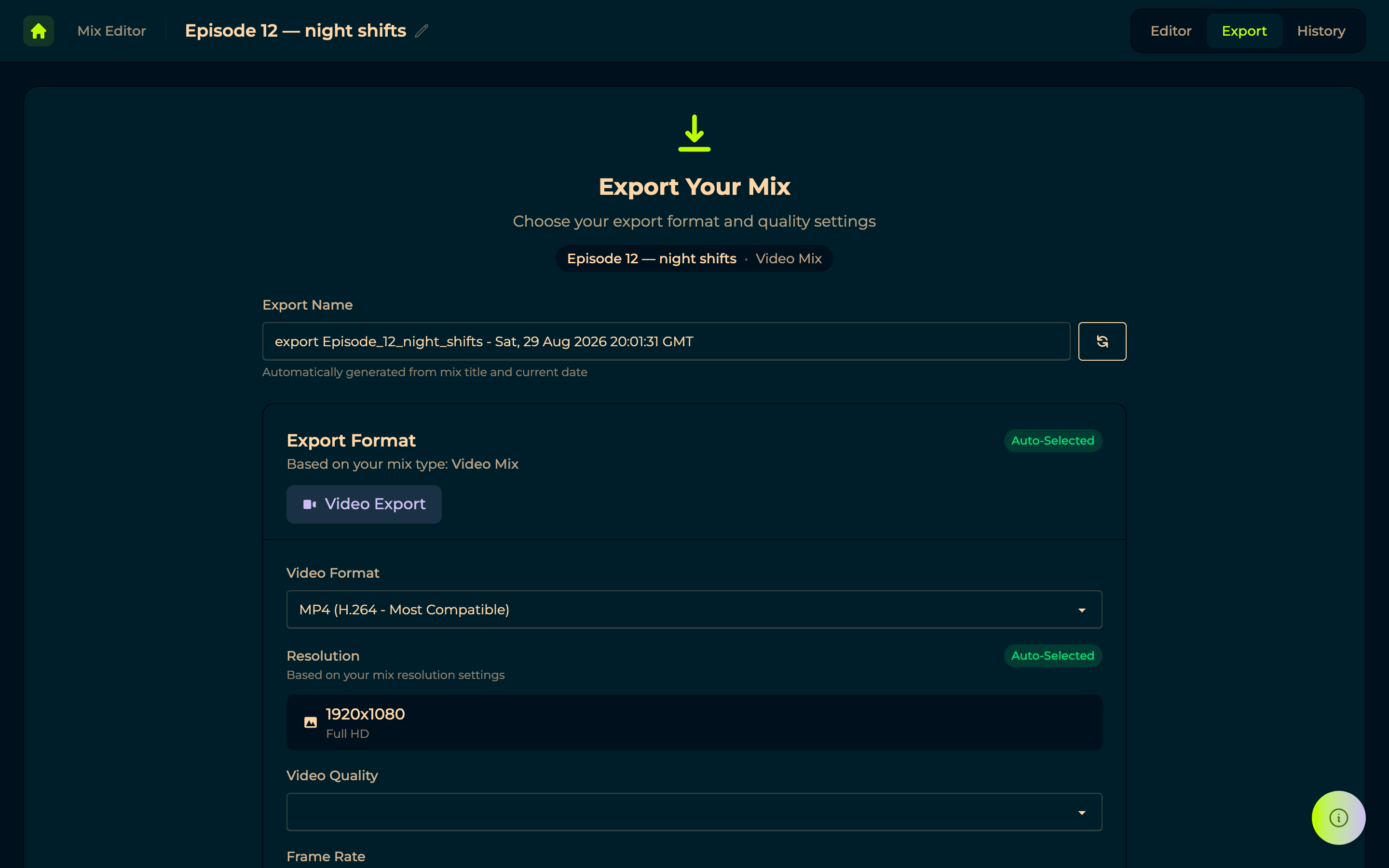
Export renders the assembled piece into one file. Give it an Export Name and a format:
- Audio: format (including FLAC lossless and OGG Vorbis), quality, sample rate and channels.
- Video: format (MOV, MKV, AVI), resolution and frame rate — several are Auto-Selected from the mix's own settings unless you override them.
A Large File Warning appears before you commit to something enormous.
Exports run as background tasks: you can leave the page and come back. History lists every export request with its progress, and finished files are downloaded from there.
The simple editor
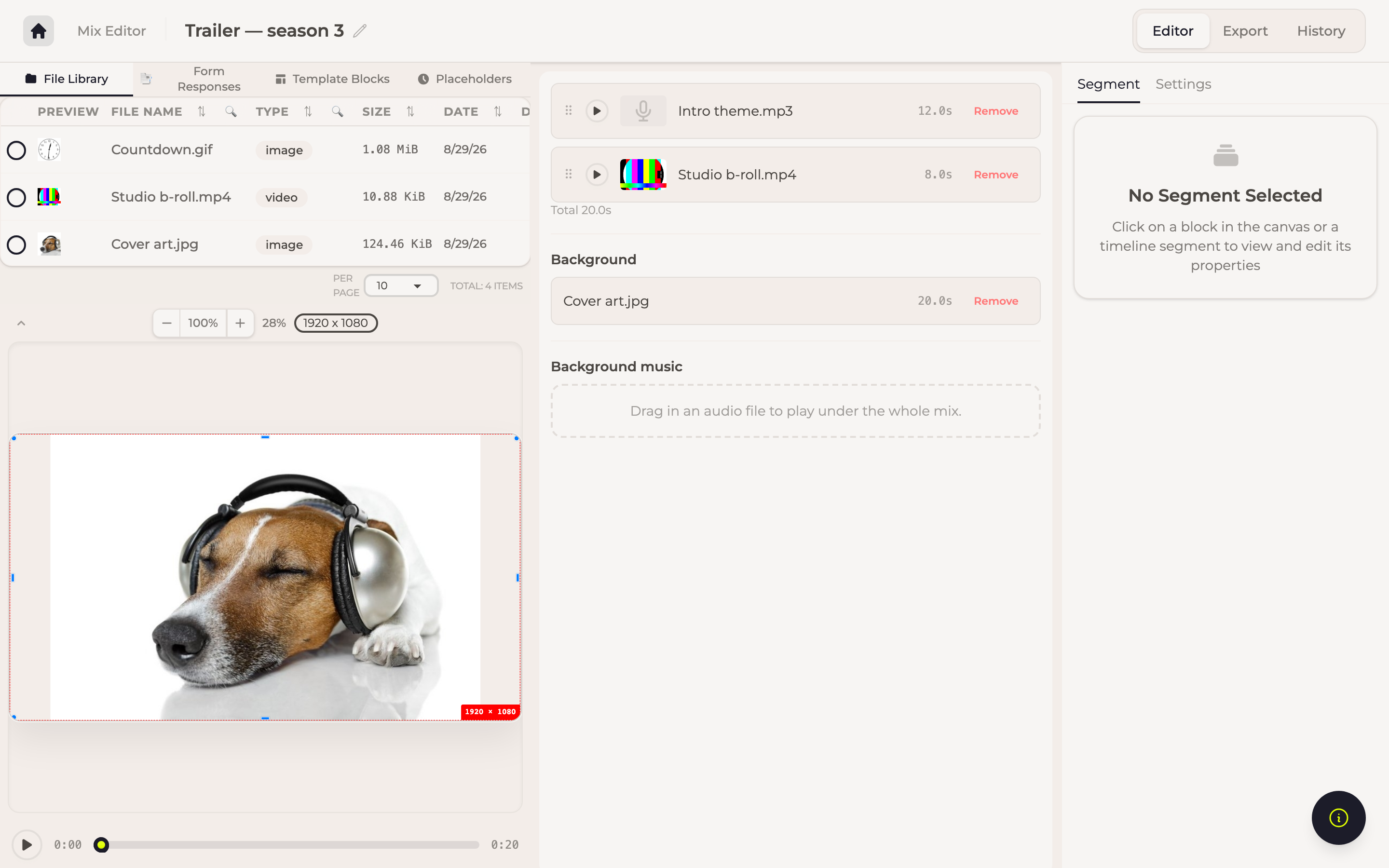
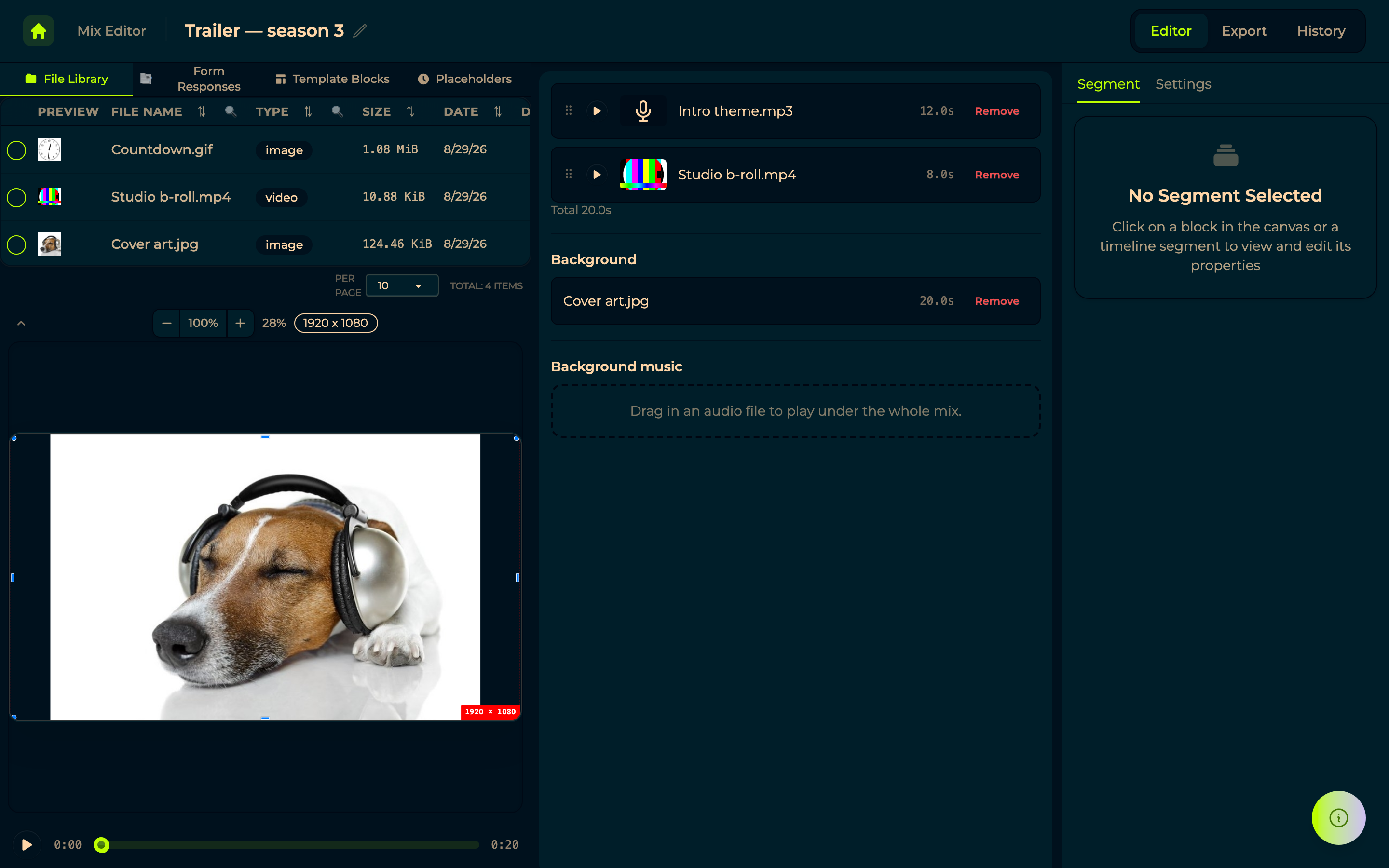
New simple mix shows the same mix without the timeline. On the left, your sources with the preview under them; on the right, the mix itself as a list you read top to bottom.
The list is what plays, in order. Each entry carries its picture, its waveform, its length and its transcript when the file has one, so you can tell the pieces apart without playing them. Drag the handle to reorder, Remove to take one out, and the play button on a row starts the mix at that point.
Background and Background music sit under the list. A background is one image or video behind the whole mix; background music is one audio file under it. Drop a file on either and it takes the place of what was there — that is what keeps the mix simple. Each section only takes what it can use: an image dropped on Background music is turned away, since it has no sound to play. A video dropped as a background is asked whether its own sound should play under the mix.
The seek bar under the preview scrubs the whole mix, not one piece of it.
The sources fold away with the arrow above the preview, which is worth doing once the pieces are in: the preview then has the whole column.
It is the same mix, either way
The two editors are two readings of one mix, not two kinds of mix. The list is the first track of the timeline; Background is its second; Background music its third. Switch with the Editor mode toggle in Settings — nothing is converted, nothing is lost, and you can switch back.
A mix arranged in the timeline in ways the list cannot describe — two backgrounds at once, say, or pieces on a fourth track — says so where it cannot show them, and the timeline still edits it fine.
What a piece looks like when you add it
Whatever you drop, in either editor, is fitted to the frame the way a picture fits a screen: scaled whole, keeping its proportions, centred. A phone photo is scaled down, a small logo scaled up, and neither is cropped. Segments then moves and resizes it however you like.
A file with no picture — an audio file, or a placeholder — takes the whole frame, so a mix built as audio already has a layout the day you switch it to video.